SurelyUp visits your websites around the clock and emails you the moment one stops working. Setting it up takes about two minutes.
1. Confirm your email
We sent a link to the address you signed up with. Click it so we know alerts will reach you. Until you do, your websites are saved but not checked. No email? Look in your spam folder, or click Send the link again on the dashboard.
2. Add a website
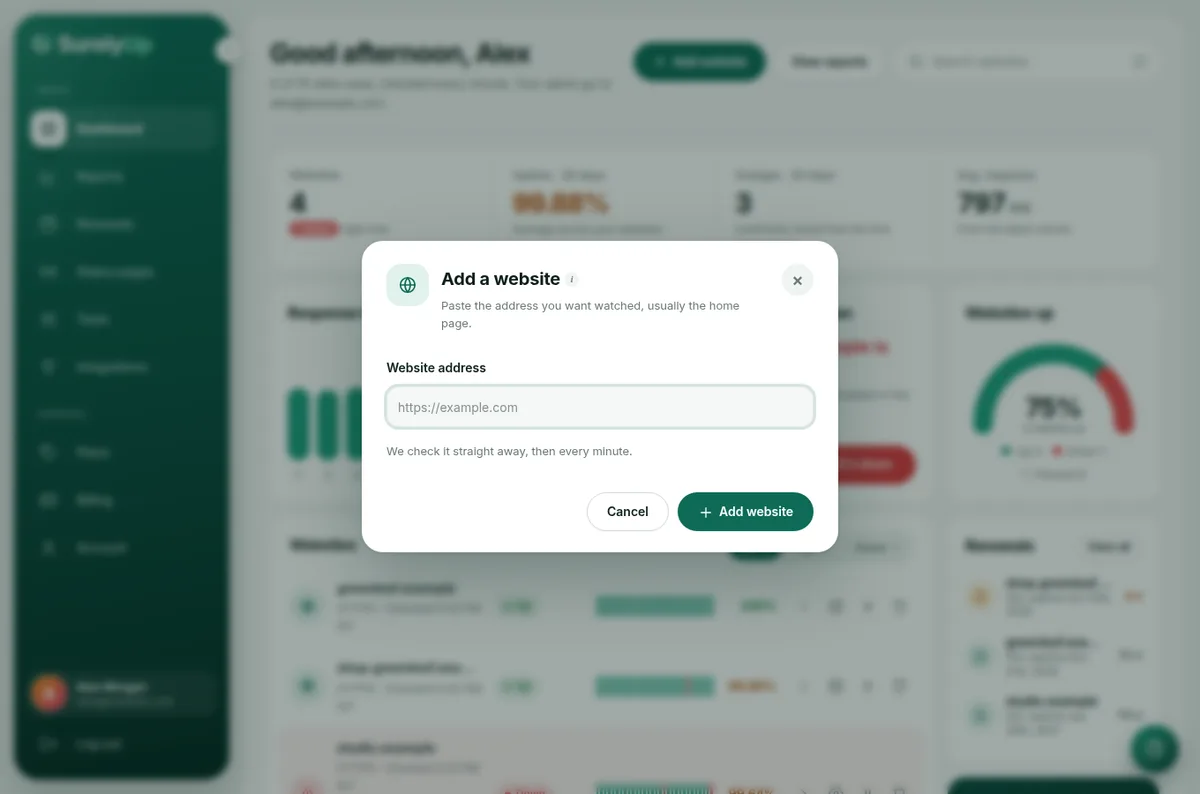
- On the Dashboard, click Add website.
- Paste the address you want watched, usually the home page, like
https://example.com. - Click Add website. We check it straight away, so you see its status within a few seconds.
3. Set your time zone
Click your name at the bottom of the sidebar to open Your profile and choose your time zone. Every time in the app and in your emails then matches your own clock.
What you see on the dashboard
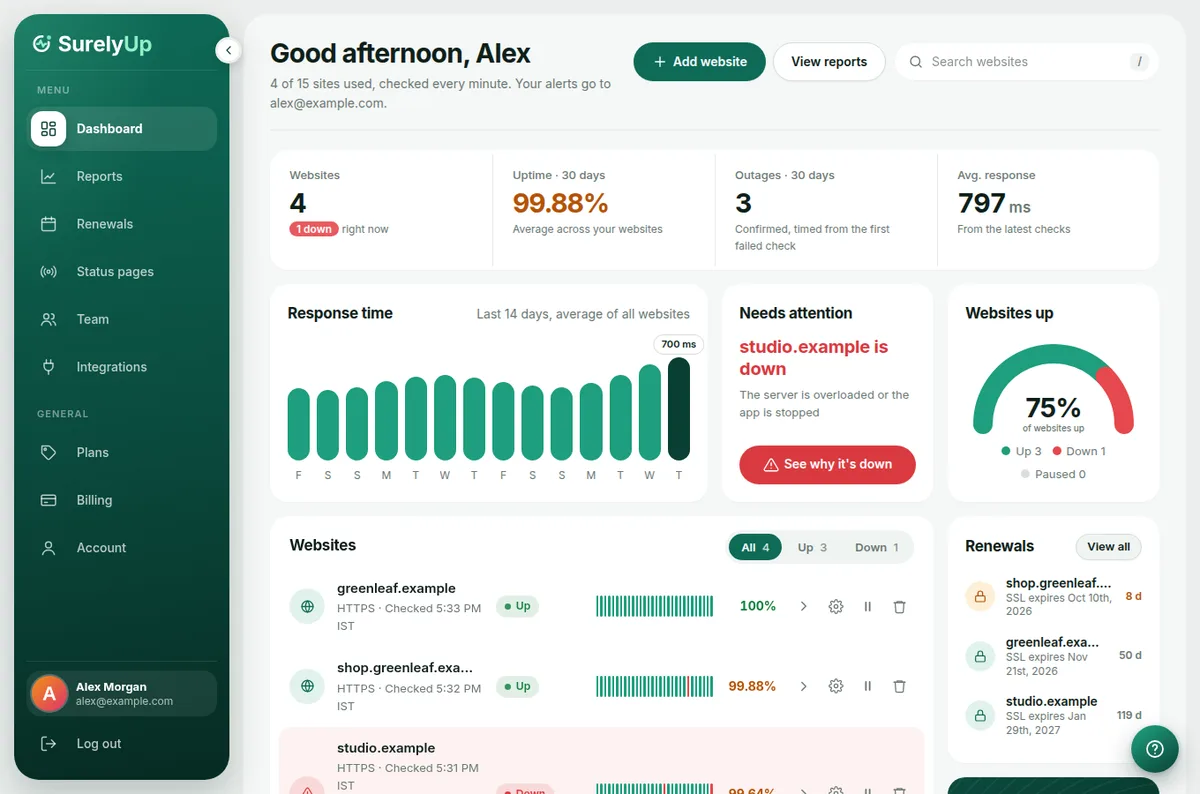
- The numbers along the top: how many websites you have (and how many are down), uptime and outages over the last 30 days, and the average response time. Click one to jump to the details.
- Response time: how fast your websites answered each day for the last 14 days.
- Needs attention: the one thing to look at now, like a website that's down or a certificate about to expire.
- Websites: every website with its status, a bar for each of the last 30 days, and its uptime. Use All, Up, Down or Paused to filter. The buttons at the end of each row open its outages (›), its settings (the cog), and pause or remove it.
- Renewals and your plan on the right: the next certificates to renew, and how many websites your plan has left.
Finding your way around
- The green menu on the left has every page: Dashboard, Reports, Renewals, Status pages, Team and Integrations, then Plans, Billing and Account. Click the arrow at its top to shrink it to icons.
- Your name at the bottom of the menu opens Your profile.
- The round ? button in the bottom-right corner opens Help from any page.
- Hover over anything with a small i for a short explanation.
Tip: Press / anywhere to jump to the search box and find a website quickly.