A status page is a public web page that shows whether your websites are working right now, with 90 days of uptime and any recent outages. Share the link with customers or clients, or put it in your website's footer, so they can check for themselves instead of emailing you.
Create a status page
- Open Status pages in the menu and click Create a status page (or New status page once you have one).
- Give it a name, like your company's name. The page address is filled in from it; change it if you like.
- Add a short note if you want one, like who to contact.
- Tick the websites to show and give each a name your customers will recognise, like "Online shop". Website addresses are never shown, only these names.
- Click Publish page, then Copy link on its card to share it.
Your status pages
Each page has a card on Status pages showing what your customers see right now, its uptime over 90 days, how many websites are up and how many incidents there were in the last 14 days. Unlisted means search engines can't find it. Use Open, Copy link, Edit and Delete on the card.
What your customers see
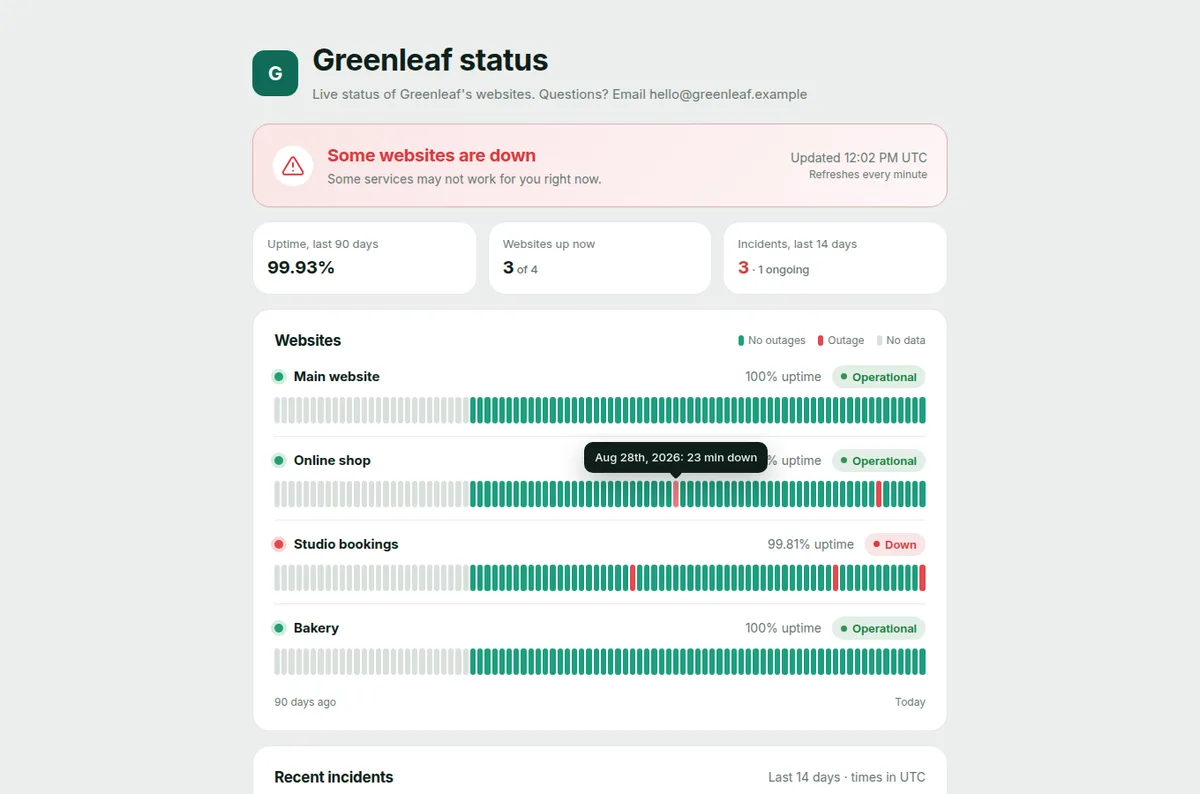
- The banner at the top: all systems operational, or that some websites are down, with when the page last updated.
- Three numbers: uptime over 90 days, websites up now, and incidents in the last 14 days.
- Each website: whether it's up now, its uptime over 90 days, and a bar for each day. Hover over a bar to see that day's downtime.
- Recent incidents: outages in the last 14 days, grouped by day, each marked Ongoing or Resolved with when it started and ended.
The page updates on its own every minute. Dates use the time zone in your profile. A paused website shows as paused, not down.
Search engines
New pages are hidden from search engines, so only people with the link find them. Turn on Let search engines list this page if you want customers to find it by searching.
How many you can have
Starter and the free trial include 1 status page, Pro includes 5 and Enterprise has no limit. The account owner and admins can create and change them; members can see and copy the links.
Delete a status page
On Status pages, click Delete on the page's card (or Delete page at the bottom of its edit screen) and confirm. The link stops working straight away. Your websites and their history are not affected.
Tip: Changing a page's address breaks the old link, so update it wherever you've shared it.