Everyone logs in with their own email and chooses their own alerts, so nobody shares a password. Plans and billing stay with the owner.
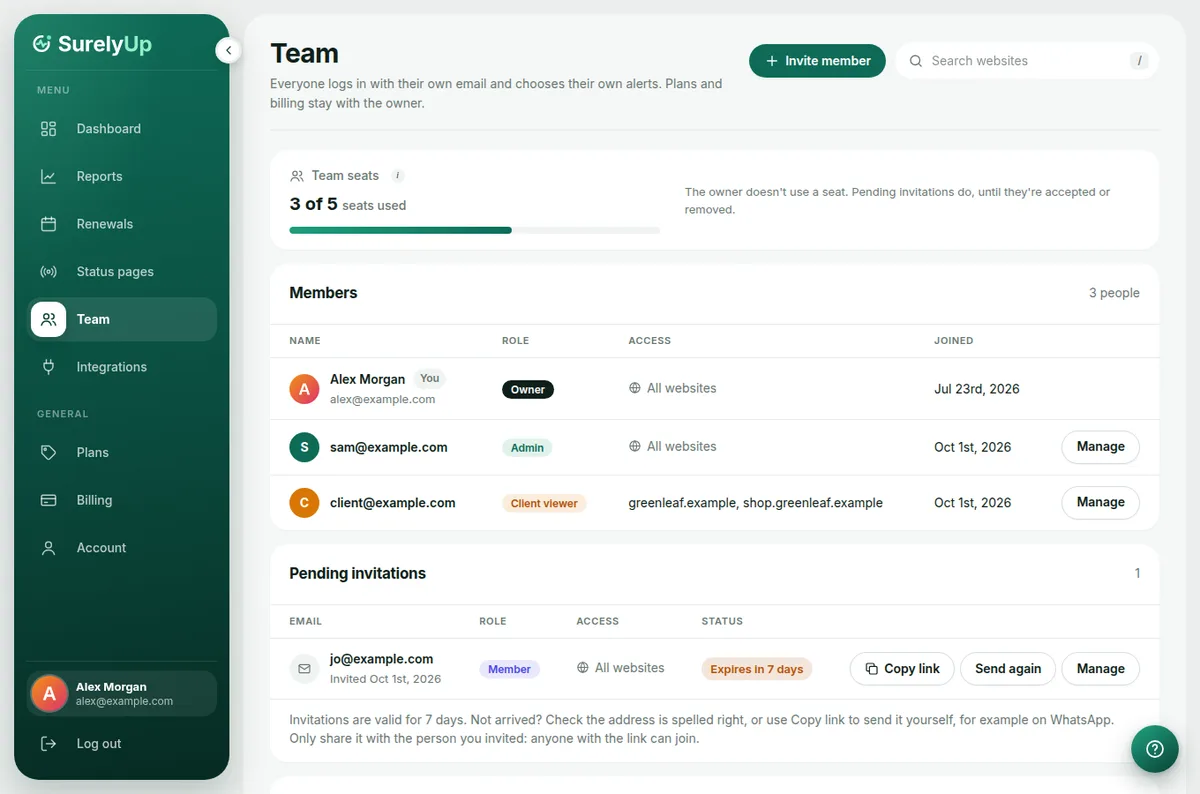
What's on the page
- Team seats: how many seats your plan has and how many are used.
- Members: everyone who has joined, with their role, the websites they can see and when they joined.
- Pending invitations: people you've invited who haven't joined yet, and how long their invitation is still valid.
- What each role can do: a side-by-side list of what each role is allowed to do.
Roles
- Owner: the person who created the account. Everything, including plans and billing.
- Admin: sees everything, adds and removes websites, manages the team. No access to billing.
- Member: sees every website and report, and chooses their own emails. Can't change anything else.
- Client viewer: sees only the websites you choose, and gets alerts and reports for those.
Invite someone
- Open Team and click Invite member.
- Enter their email and pick a role. For a client viewer, tick the websites they may see.
- Click Send invitation. The invitation is valid for 7 days.
Invitation didn't arrive? Check the address and click Send again, or click Copy link and send it yourself, for example on WhatsApp. Only send it to the person you invited: anyone with the link can join.
Change or remove access
Click Manage next to a person to change their role or websites, or to remove them. Removing someone takes effect immediately.
Team size
Starter: 1 person. Pro: 5 people. Enterprise: no limit. The owner doesn't count, and pending invitations use a seat until they're accepted or removed.