Alerts can go to your own system, or to a Slack or Discord channel, as well as by email. Add a webhook on the Integrations page and every down, recovery and SSL alert for all your websites is posted there too. Webhooks are included on every plan.
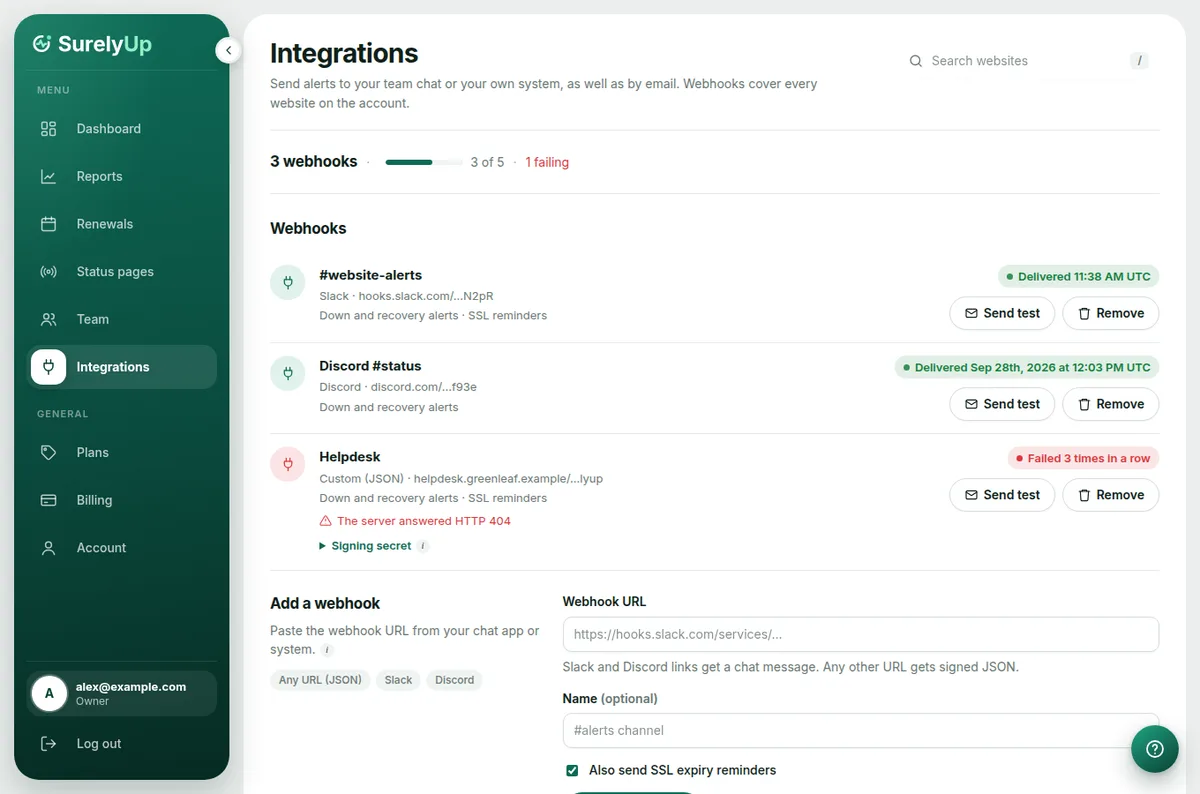
Add a webhook
- Get a webhook URL from your system, or from Slack or Discord (see below).
- Open Integrations in the menu and paste it into Webhook URL.
- Give it a name if you like, such as the channel name. Untick Also send SSL expiry reminders if you only want down and recovery alerts there.
- Click Add webhook. We send a test message straight away, so check it arrived.
Where to find the webhook URL
- Slack: create a Slack app for your workspace, turn on Incoming Webhooks, click Add New Webhook to Workspace and pick a channel. Copy the URL starting with
https://hooks.slack.com/services/. Links made with Slack's Workflow Builder (/triggers/) expect a different message and won't work. - Discord: open the channel's settings, then Integrations → Webhooks → New Webhook, and click Copy Webhook URL.
We recognise these links and send a message each app shows nicely: what happened, the likely cause and a link to the details.
Your own system
Any other https URL gets a JSON message with event (website.down, website.recovered, ssl.expiring, ssl.expired or test), title, message, cause, website (its id and address), link and occurred_at.
Each message has an X-SurelyUp-Signature header like t=1790000000,v1=…. To check it came from us, compute an HMAC-SHA256 of the timestamp, a dot and the raw body (t.body) with the webhook's signing secret, shown under the webhook, and compare it with v1.
If a message doesn't arrive
Each webhook shows when its last message was delivered. If one fails, the reason is shown under it, such as The server answered HTTP 404, which usually means the webhook was deleted in the chat app. Click Send test after fixing it, or Remove it and add a new one. Emails are sent either way.
Tip: Only the account owner and admins can see Integrations, because a webhook URL lets anyone post to that channel.