A page can load and still be broken, like a shop whose products don't show or a page showing a database error. A keyword check reads the page on every check and treats the website as down when important text is missing, or when text that should never be there appears.
Set it up
- On the Dashboard, click the cog at the end of the website's row to open its settings.
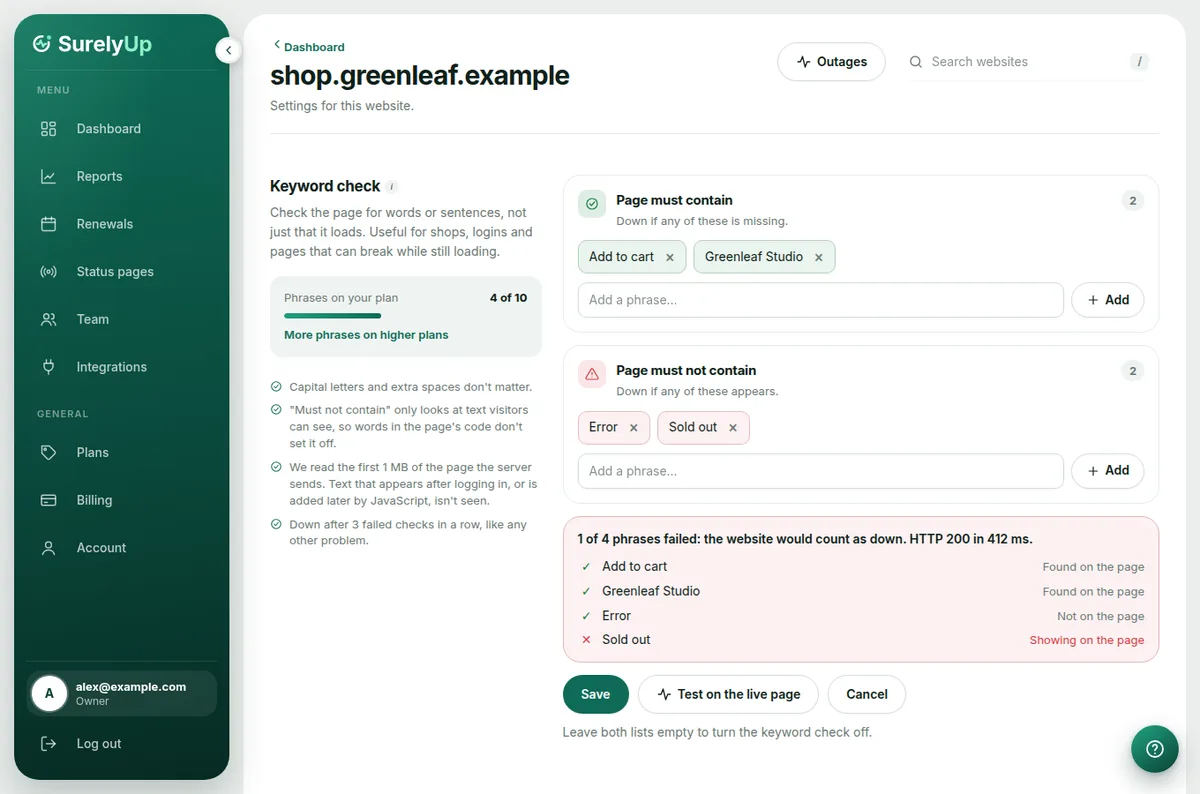
- Under Page must contain, add words or sentences that are always on the page, like Add to cart or your company name. Type one and press Enter or click Add. The website is down if any of them is missing.
- Under Page must not contain, add text that should never appear, like Error or Under maintenance. The website is down if any of them shows up.
- Click Test on the live page to check your phrases against the website right now, without saving. Each phrase is marked found, missing or showing, with whether the website would count as up or down.
- Click Save. We check the website straight away with the new phrases.
Click × on a phrase to remove it. Pasting several lines adds each one. Remove every phrase to turn the keyword check off.
How phrases are matched
- Capital letters and extra spaces don't matter.
- Must not contain only looks at text visitors can see, so the same word in the page's code doesn't set it off.
- We read the first 1 MB of the page the server sends. Text that only appears after logging in, or is added later by JavaScript, isn't seen.
- A failed keyword check counts like any other problem: 3 failed checks in a row, then an alert, and Why is it down? says which phrase failed.
How many phrases you can use
Per website, both lists together: 2 on the free trial and Starter, 10 on Pro and 25 on Enterprise. The bar on the settings page shows how many you've used. If you move to a smaller plan, your phrases are kept but only the first ones up to the new limit are checked.
On the dashboard, Keyword (or 3 keywords) next to a website's address means a keyword check is on. Hover over it to see the phrases.
Tip: Only the account owner and admins can change a website's settings.