Backups and scheduled jobs (sending invoices, syncing orders, clearing old data) run in the background. When one stops, the website still loads, so nobody notices until something goes wrong. A heartbeat watches for that silence.
How it works
- You add a heartbeat and say how often the job runs, for example every day.
- We give it a private check-in address.
- The job visits that address every time it finishes.
- If a visit doesn't arrive on time, we alert you.
Add a heartbeat
- Open Heartbeats in the menu.
- Give it a name, like Nightly backup.
- Choose how it runs:
- Every…: every so many minutes, hours, days, weeks or months, counted from each check-in.
- At set times: the days and times it runs, like Monday to Friday at 9:00 AM and 6:00 PM, in your time zone.
- Cron: if the job already has a cron schedule, like
0 2 * * *, paste it in.
- Choose how late it may be before you're alerted. Give some room: a backup that usually takes 20 minutes might take longer on a busy night.
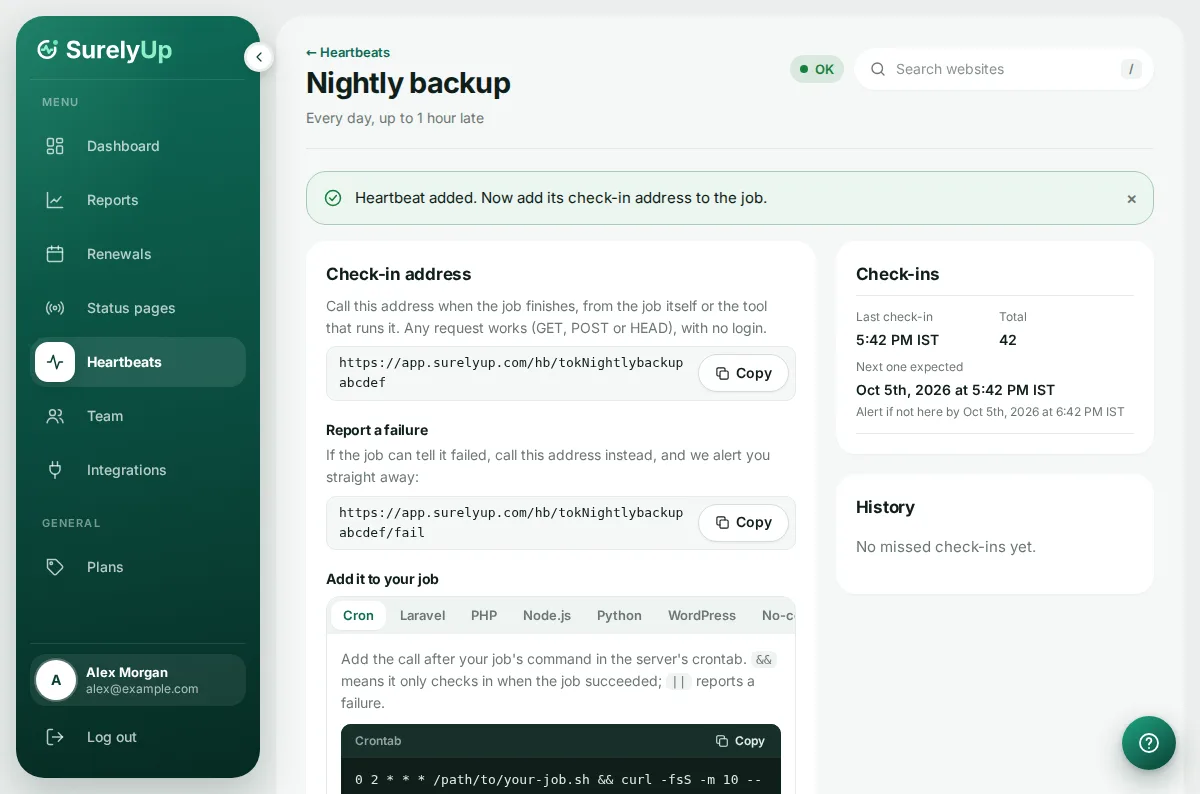
- Click Add heartbeat. Its page shows the check-in address.
Connect the job
The job only needs to call the check-in address when it finishes: any request works, from any language or tool. The heartbeat's page has ready-to-copy examples, with its own address filled in, for:
- Cron on a server: one line after the job's command.
- Laravel: the scheduler has it built in (
pingOnSuccessandpingOnFailure). - PHP, Node.js and Python: a call at the end of the job, and the failure address if it goes wrong.
- WordPress: a call at the end of a scheduled task.
- No-code tools and backup services: a last GET request step in Zapier, Make or n8n, or the ping URL setting of a backup plugin.
- To test it: open the address in your browser. It says OK, and the heartbeat shows the check-in.
What you'll see
- Waiting for first check-in: nothing is checked until the job checks in once.
- OK, or Running late while it's past due but still within the time you allowed.
- Missing: the check-in didn't arrive. You get a MISSED email (and webhook, Slack or Discord message), reminders if you turned them on, and a BACK email when it checks in again.
Report a failure
If the job knows it failed, have it visit the address with /fail on the end. We alert you straight away instead of waiting for the next check-in.
Tip: Heartbeat alerts go to the account owner and team members with alert emails on. Client viewers don't see heartbeats. Pause one while you change the job, so it doesn't alert.